Showing posts with label Windows. Show all posts

Sunday, 2 September 2012

Add An Extra Option "Take Ownership" On The Context Menu

| 0 comments

This process will add an extra option "take ownership" on the context menu of a selected file or folder. By using this any local user can find the ownership same as the administrator.before going through this tutorial you must create a back up of your Windows Registry.
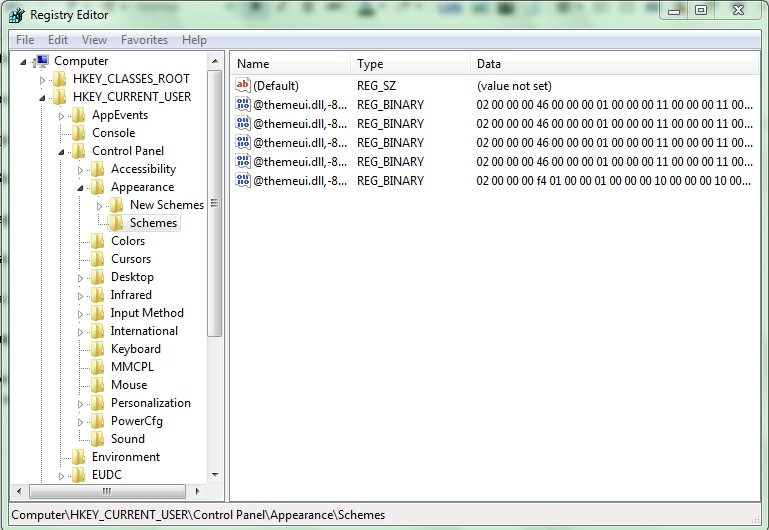


Now open your notepad or any other text editor and enter the following Information:-


Windows Registry Editor Version 5.00
[HKEY_CLASSES_ROOT\*\shell\takeownership]
@="Take ownership"
"HasLUAShield"=""
"NoWorkingDirectory"=""


[HKEY_CLASSES_ROOT\*\shell\takeownership\command]
@="cmd.exe /c takeown /f \"%1\" && icacls \"%1\" /grant administrators:F"
"IsolatedCommand"="cmd.exe /c takeown /f \"%1\" && icacls \"%1\" /grant administrators:F"


[HKEY_CLASSES_ROOT\exefile\shell\takeownership]
@="Take ownership"
"HasLUAShield"=""
"NoWorkingDirectory"=""


[HKEY_CLASSES_ROOT\exefile\shell\takeownership\command]
@="cmd.exe /c takeown /f \"%1\" && icacls \"%1\" /grant administrators:F"
"IsolatedCommand"="cmd.exe /c takeown /f \"%1\" && icacls \"%1\" /grant administrators:F"


[HKEY_CLASSES_ROOT\dllfile\shell\takeownership]
@="Take ownership"
"HasLUAShield"=""
"NoWorkingDirectory"=""


[HKEY_CLASSES_ROOT\dllfile\shell\takeownership\command]
@="cmd.exe /c takeown /f \"%1\" && icacls \"%1\" /grant administrators:F"
"IsolatedCommand"="cmd.exe /c takeown /f \"%1\" && icacls \"%1\" /grant administrators:F"


[HKEY_CLASSES_ROOT\Directory\shell\takeownership]
@="Take ownership"
"HasLUAShield"=""
"NoWorkingDirectory"=""


[HKEY_CLASSES_ROOT\Directory\shell\takeownership\command]
@="cmd.exe /c takeown /f \"%1\" /r /d y && icacls \"%1\" /grant administrators:F /t"
"IsolatedCommand"="cmd.exe /c takeown /f \"%1\" /r /d y && icacls \"%1\" /grant administrators:F /t"


Note:
Please make sure that the first line (the one starting with "Windows Registry Editor..." appears in the text file. Now save the notepad file anywhere on your computer and give it a .reg extension.(suppose xxx.reg).Now you need to install that registry file to Windows registry..


After installing the registry Now reboot your computer and Enjoy the change.
Read More

How To Add Registry Entry

| 0 comments
1. Open registry Editor.
  
2. Now click on File on "Menubar"

3. Now Click on "Import".

4. It will open the "Browse" window.


5. Now choose the registry file that you want to install and click on open.


6. it will show an message that the registry Entry is successfully added to the registry.That is it.


You can also install a registry file by double click on that file (or right click of mouse on that file and choose merge)
it will open UAC prompt and show you that the adding registry file must be harmful to your system.

                                
Just ignore all the message and click on OK. After that it will show the message that the registry entry is successfully added to the registry.
Read More

Take Ownership Of A File In Windows

| 0 comments
Here is a process to take ownership of a file.

Process to take ownership of a file in windows:

1. Select the file or folder whose ownership you want to take and right click of mouse on it and choose "Properties".


2. On the property window navigate to "Security" tab.


3. Click on "Advanced".


4. On the open advanced security option window navigate to "Owner" tab.


5. Now click on "Edit".


6. a new window for advanced security option will be opened.


7. you will find a table asking for "Change owner to". Now select the local user to which you want to take the ownership.


8. Below that you will find an check box "replace owner on sub containers and objects".

9. Just tick the check box.


10. Now apply all the modified setting.

11. During apply the changes it will show an message "You dont have the permission to read the file or the contents of the directory. Do you want to change the permission of the file or folder to full control. All permission will be replaced if you press ok".


12. Just ignore the message and Press ok.


Want to know how to add Take Ownership context menu in windows


Read More

Thursday, 30 August 2012

Speed Up Internet Connection Without Any Software

| 0 comments
Want to speed up internet connction, just follow the steps below,

  • Goto Start >> RunType gpedit.ms
  • This opens the Policy Editor

  • Now, Local Computer Policy >> Computer Configuration
  • Then, Administrative Templates >> Network
  • Now, click on QOS Packet Scheduler
  • Now, on Right hand side Double Click Limit reservable bandwidth
  • Now in Setting Tab 
  • It says : Not Configure 

Reality : " The Explain Tab " says "By default, the Packet Scheduler limits the system to 20 percent of the bandwidth of a connection"


  •  So, on Setting Tab select Enabled
  • Now, change Bandwidth limit (%) to 0 (Zero)
  • Click apply and ok.


Note :

Misconcept : This don't means that you won't be able to communicate with Microsoft or any its services !!!

Actually : This reserved Bandwidth is only to accelerate Microsoft internet connections more than other connections !!!
Read More

Unlock All USB Modems (Data Cards)

| 0 comments

Unlock your data card Airtel, Huawei ,Micromax , Idea ,Reliance and many others,


Are you interested to know how to Unlock your USB MODEM (data card )

If YES then let me told  you about a FREE application called, DC unlocker.


DC unlocker is a program specialized for data card unlocking .

It is the first universal data card unlocking product worldwide.


It is fast ( takes 5 - 60 seconds to unlock), easy to use and functional program with clear interface.


It doesn`t need any cables or adapters for unlocking. The data card can be simply unlocked in the same notebook where a PCMCIA or Express socket exists.


New models are being added regularly.


No need to select any COM ports, auto detect function.
Free updates .


Download it,   Link here

Read More

Use Your Keyboard As A Mouse

| 0 comments
Yes you can use ur Keyboard as a Mousewhen ur mouse is down or Emergency,


Just Follow the steps :
Press  Shift+Alt+Numlock from ur Keyboard
Press Yes on the window appearing on the screen

Now you will see a Mouse icon in Task Bar

Now you can use your keyboard as mouse

Navigation Keys (Num Lock Keys)

8 – Up
2 – Down
4 – Left
6 – Right
7,9,3,1 – Directional Navigation

Note:You Must Turn On Num Lock

Like us on Facebook Click Here.
Read More

Create Password Protected Folder In Windows

| 0 comments

Today I am going to tell you how to make a password protecting folder in windows operating system, The trick is done using batch programing. The simple batch code posted below can help u to make a password protecting folder in windows environment.

So, to make such a folder just follow the steps mentioned below, 


  • Open notepad and copy the following code and paste it in notepad.


  • Save the file as TrikzTech.bat or give the name whatever you want but the file extension must be .bat .
  • Now close notepad, you will see a file named ' TrikzTech.bat ' in your directory. Double click on file and enter password 'trikztech' (without quotes).
  • Now a new folder is created in your directory named Private, just put files you want to hide in this folder.
  • Again open the file ' TrikzTech.bat ' and it will ask you to lock folder not just press Y  to lock folder and done.
  • To open the folder again open ' TrikzTech.bat ' and enter password, If you want to change password then just change the following line in the code, place your desired password at the place of trikztech.

This trick is very old but still working, has a simple programming logic, I posted it only for beginners. Advanced users knows this types of tricks.

Feel free to comment below if you have any problem...
Read More